Catalog
Written By Philipp Brockerhoff
Last updated About 2 hours ago
The Catalog is used to browse, search, and select assets throughout Inkarnate. Depending on the active tool or feature, the Catalog displays different types of content while providing the same browsing, search, and filtering functionality. The Catalog is used in the following areas:
Stamp Tool: Stamps and Stamp Sets, including custom assets and self-made composites.
Brush Tool: Textures.
Line & Shape Tools: Stroke assets.
Texture Filters: Texture filter overlays.
The Catalog also displays assets purchased from the Marketplace, making them available alongside the built-in asset library.
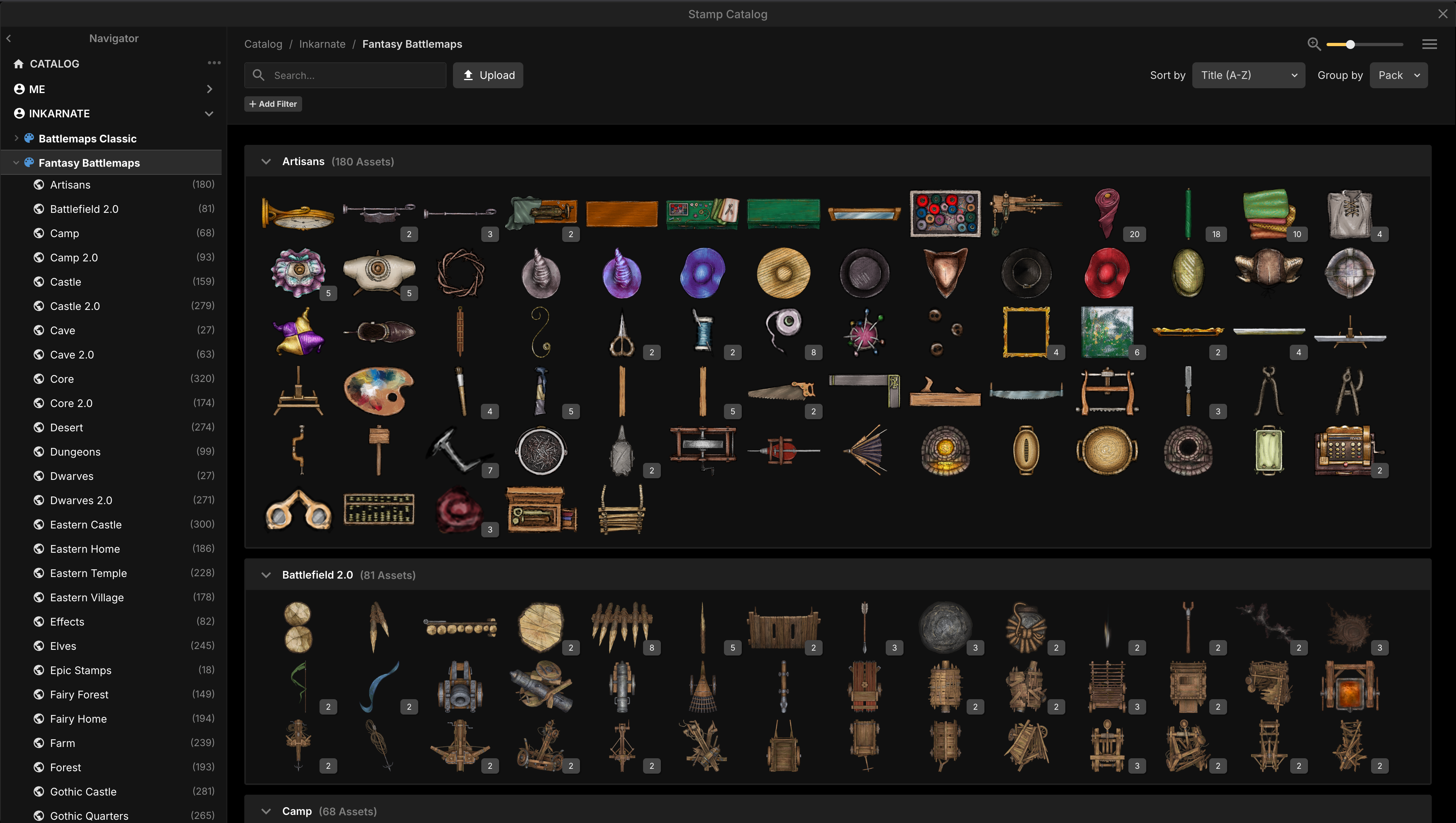
Layout Overview
The Catalog consists of three main areas.
Hierarchy
The hierarchy on the left is used to browse the available asset library. Assets are organized into three levels:
Creator, Style, Pack Creators are displayed in the following order:
Me (custom assets)
Official Inkarnate
Marketplace Creators
Packs display both their name and the number of matching assets they currently contain. These counts update automatically when searching or filtering.
Packs that are not assigned to a style are displayed below the available styles or directly under the creator.
Toolbar
The toolbar at the top of the Catalog provides tools for searching, filtering, sorting, and changing how assets are displayed. Available functions include:
Search
Filters
Sorting
Grouping
Preview Size
Display Options
Upload Custom Assets
Paid Feature
The Uploading Custom Assets is available with a paid subscription.
Asset Grid
The Asset Grid displays the assets matching the current hierarchy selection, search query, and filters.
Assets can be grouped by Pack or Tag.
Hovering over an asset displays its name and associated tags.
Clicking an asset selects it and closes the Catalog.
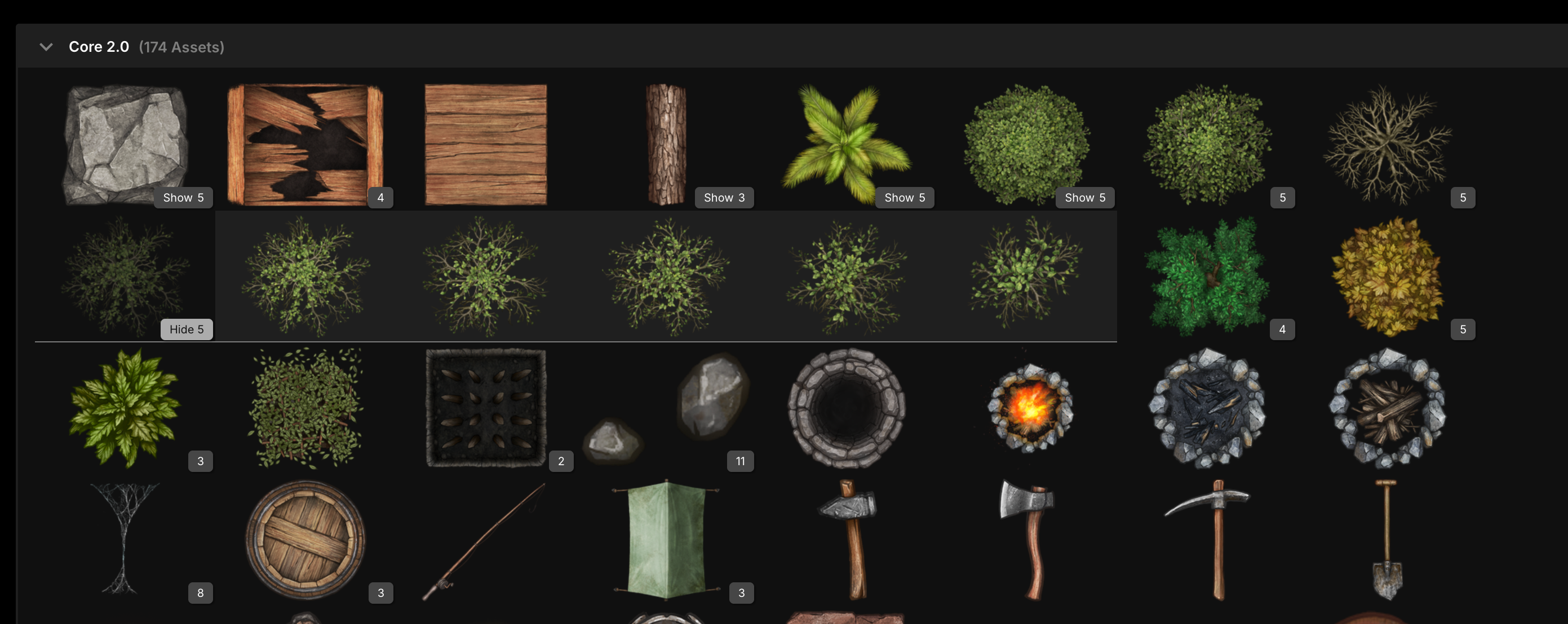
Stamp Sets can be expanded to browse and select individual Child Stamps.
Browsing Assets
Selecting items in the hierarchy determines which assets are displayed in the Asset Grid.
Selecting a Pack displays the assets in that pack.
Selecting a Style displays all packs within that style.
Selecting a Creator displays all packs from every style created by that creator.
Selecting the Catalog displays every available pack.
Multiple packs can be selected by holding Ctrl or Shift. Packs from different styles and creators can be selected together, allowing you to browse assets from multiple collections at the same time.
Click an asset to select it and close the Catalog. Stamp Sets can be expanded to browse and select individual Child Stamps.
Searching
Use the search field to quickly find assets by name, pack, or tags. Press Enter to apply the search terms.
Indexed Fields
The Catalog searches the following information:
Asset Name
Child Stamp Name
Pack Name
Tags
Tag Keywords
Matching Rules
The Catalog uses several matching rules to provide flexible search results.
Unordered Keyword Matching
Search queries are split into individual keywords separated by spaces. An asset matches when every search keyword is found within any indexed field, regardless of the order.
Examples
Hat Purple→ matches Purple Wizard HatGlowing Crystal Green→ does not match Red Glowing Crystal
Prefix Matching
Each keyword matches the beginning of a word.
Examples
wa si→ matches Wall Signtoes→ does not match Tomatoes
Pack Matching
If a search keyword matches a pack name, every asset contained in that pack is included in the search results.
Example
artmatches the pack Artisan and returns all assets from that pack.
Tag Matching
If a search keyword matches a tag or tag keyword, every asset assigned to that tag is included in the results.
Examples
bookmatches the tag Books & Documents.cupboardmatches the tag keyword for Cabinet tag and returns all assets assigned to the tag.
Case-Insensitive Matching
Searching is not case-sensitive.
Examples
wallWallWALL
All produce the same results.
Singular and Plural Matching
Singular and plural forms are matched automatically. This matching is rule-based and also works with custom words.
Examples
haysmatcheshayhayesdoes not matchhay
Base-Form Matching
Common word endings are automatically normalized, including -s, -ed, and -ing.
Examples
waitingwaited
produce the same results as wait.
Search Suggestions
When a search query matches a Pack or Tag, matching filters are suggested below the search field, allowing you to quickly refine your search.
Filtering
Filters can be combined to narrow the displayed assets.
The following filter types are available:
Tag
Pack
Style
Creator
User Group
Published Date
Used in this Map
The Tag filter supports hierarchical tags. Selecting a parent tag automatically includes all of its child tags.
The Tag filter also provides an Untagged option to find assets without assigned tags.
Combining Filters
Different filter types are combined using AND matching.
Example
Style = Fantasy WorldTag = Castle
Returns only assets that match both conditions.
Multiple Selections
Some filters support selecting multiple values, including:
Tags
Packs
Styles
Multiple selections within the same filter use OR matching.
Example
Pack = CavesPack = Mines
returns assets from either pack.
Sorting & Display
The Catalog provides several options for changing how assets are displayed.
Sorting
Assets can be sorted by:
Title
Published Date
Grouping
Assets can be grouped by:
Pack
Tag
Preview Size
Adjust the size of asset previews to display more or fewer assets at once.
Display Options
Additional display options include:
Show or hide asset names.
Collapse or expand all Stamp Sets.
Collapse or expand all Packs.
Tips
Use multiple keywords instead of searching for an exact asset name.
Search by tags when you are unsure of an asset’s name.
Select multiple packs or styles to browse larger collections at once.
Expand Stamp Sets to browse and place individual Child Stamps.
Combine search and filters to quickly narrow large result sets.
See Also
Stamp Tool: Place and customize assets on your map.
Brush Tool: Paint textures and colors onto Brush Layers.
Line & Shape Tools: Create node based objects with clip strokes and fills.
Filter Layers: Apply visual effects to the map.
Marketplace: Browse and purchase additional asset packs.
Was this helpful?
Still need help? Ask the team