Editor Overview
Written By Philipp Brockerhoff
Last updated 19 minutes ago
The Inkarnate Editor provides all the tools needed to create and edit your maps. The interface is organized into several areas, each with a specific purpose, allowing you to quickly access tools, manage your map, and adjust settings while keeping the canvas as the main focus.
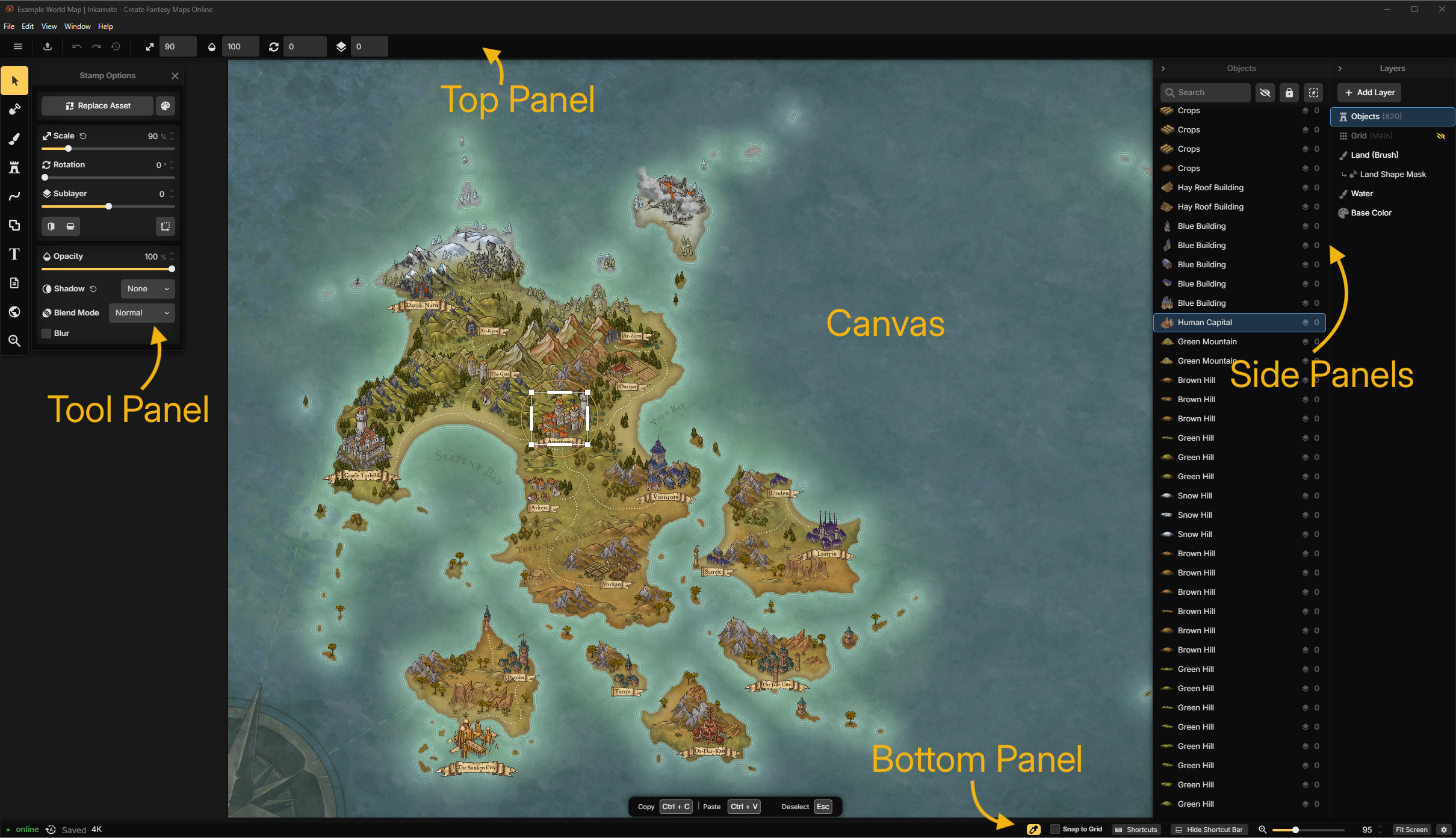
Top Panel
The Top Panel contains actions related to your map and editor.
From here you can access the main menu, export your map, undo and redo changes, and adjust commonly used settings for the currently selected tool.

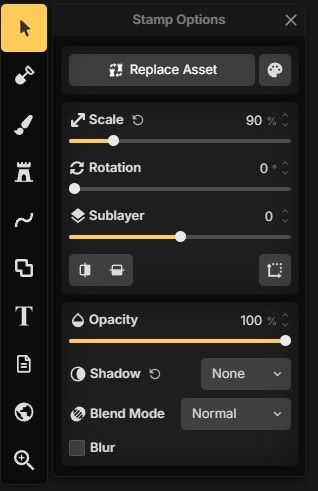
Tool Panel
The Tool Panel, positioned in the left side of the editor, provides access to all map editing tools, including selecting objects, painting terrain, placing assets, creating text, and drawing node based lines and shapes.
Selecting a tool displays the settings and shortcuts available for that tool.
Canvas
The Canvas is your main workspace where you create and edit your map.
Most editing actions, object placement, painting, and selections are performed directly on the canvas.
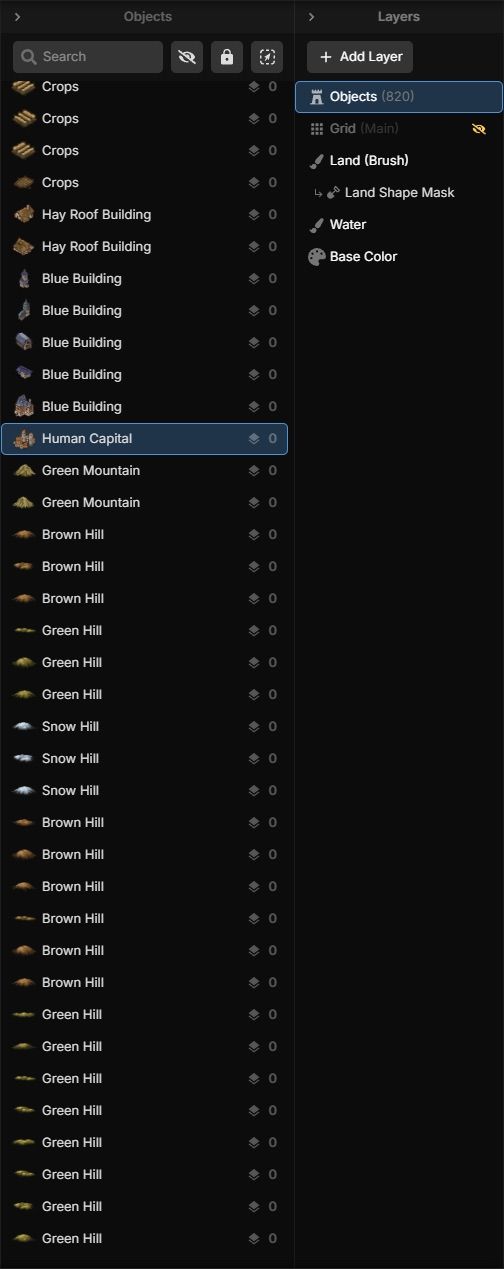
Side Panels
The panels on the right are used to organize and manage your map.
Layer Panel manages the different layers that make up your map.
Object Panel manages objects on the currently selected Object Layer.
Bottom Bar
The Bottom Bar contains editor status information and quick access to commonly used editor settings.
From here you can monitor save status, view the editing resolution, toggle features such as Snap to Grid, and adjust the zoom level.

Context-Sensitive Controls
Many parts of the editor change depending on what you are doing.
Selecting a different tool updates the available tool settings in the Top Panel and changes the available keyboard shortcuts shown in the Shortcut Bar. This keeps frequently used controls close at hand while reducing unnecessary clutter.
Tips
You can expand, contract or collapse the panels
Hover over buttons to view tooltips and keyboard shortcuts.
If you cannot find a setting, first check whether it belongs to the currently selected tool.
See Also
Layers Panel: Create and manage Object Layers, control drawing order, and organize map content.
Object Layers: Organize line, shape, stamp, and text objects while controlling shared layer settings and rendering order.
Land Tool: Create and edit the shape of the land before applying textures with the Brush Tool.
Brush Tool: Paint textures and colors onto Brush Layers.
Stamp Tool: Place and customize assets on your map.
Line & Shape Tools: Create node based objects with clip strokes and fills.
Text Tool: Add and edit titles, labels, annotations, and other text on your map.
Was this helpful?
Still need help? Ask the team