Export
Written By Philipp Brockerhoff
Last updated About 1 hour ago
The Export dialog is used to generate an image of your map for sharing, printing, or use in other applications.
Maps can be exported at different resolutions and file formats depending on the intended use. The export resolution is independent of the current Editing Resolution, allowing you to edit at one resolution while exporting at another.
Open the Export dialog by using one of the following methods:
Click Export in the top panel.
Select Export as Image from the main menu.
Press
Ctrl + P.
Export Size
Inkarnate provides two methods for determining the export size.
Standard (Pixel Size)
Exports the map using a fixed image resolution. Choose one of the predefined sizes: 1K, 2K, 4K, 6K, 8K, 16K, Custom (up to 16K)
Larger resolutions produce more detailed images but require more processing time and memory.
Paid Feature
The 4k+ export resolutions are available with a paid subscription.
16k export is available in the Studio tier.
VTT (Grid)
Available when the map contains a square Grid Layer. Instead of specifying the image size directly, the export size is calculated from the Grid dimensions and Pixels per grid cell setting.
This mode makes it easy to create maps for Virtual Tabletop applications. Common values include:
80 px per tile for Roll20
100 px per tile for Foundry VTT
Paid Feature
The VTT (Grid) Export mode is available with a paid subscription.
File Formats
Inkarnate supports three export formats.
JPEG
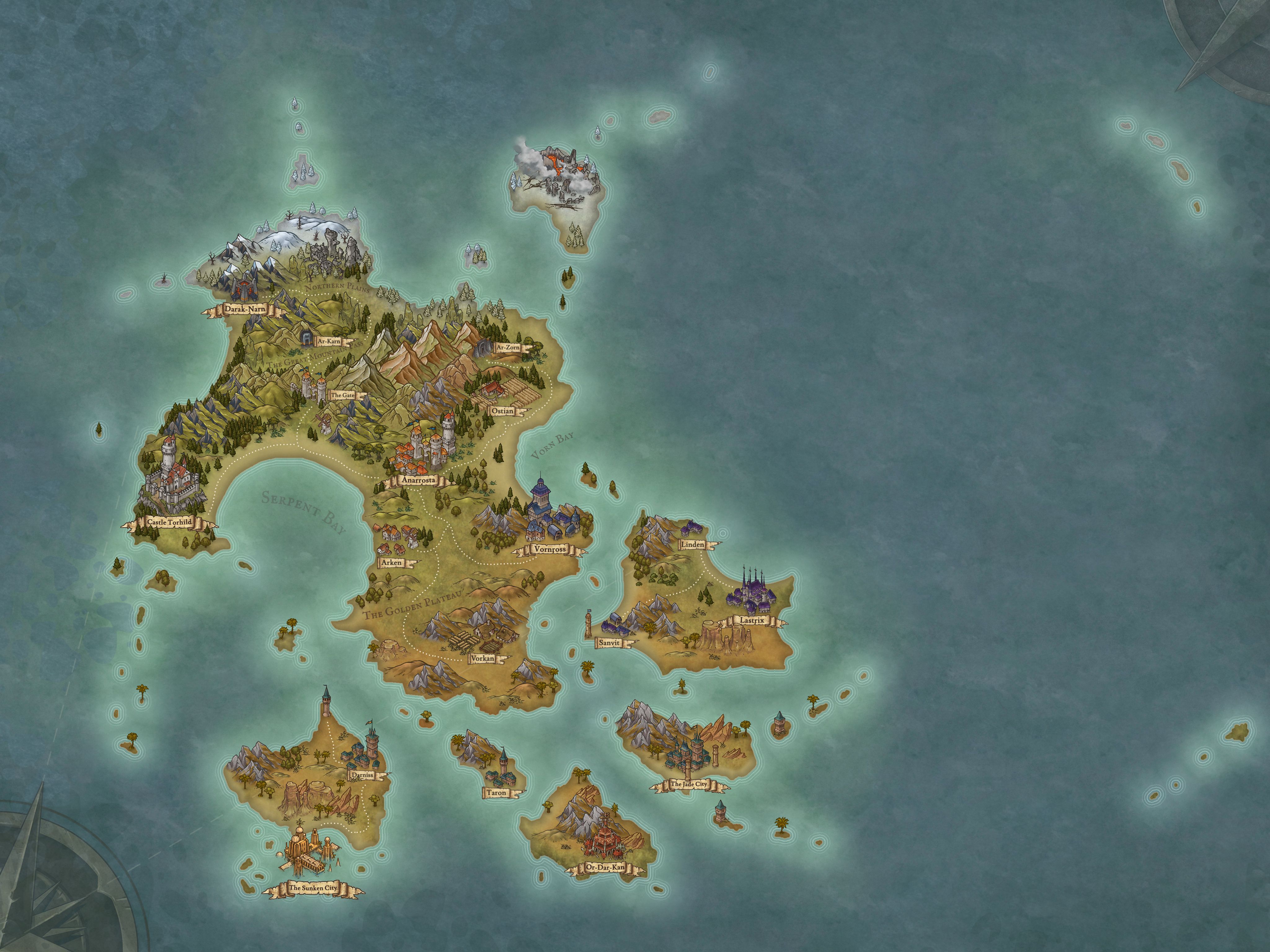
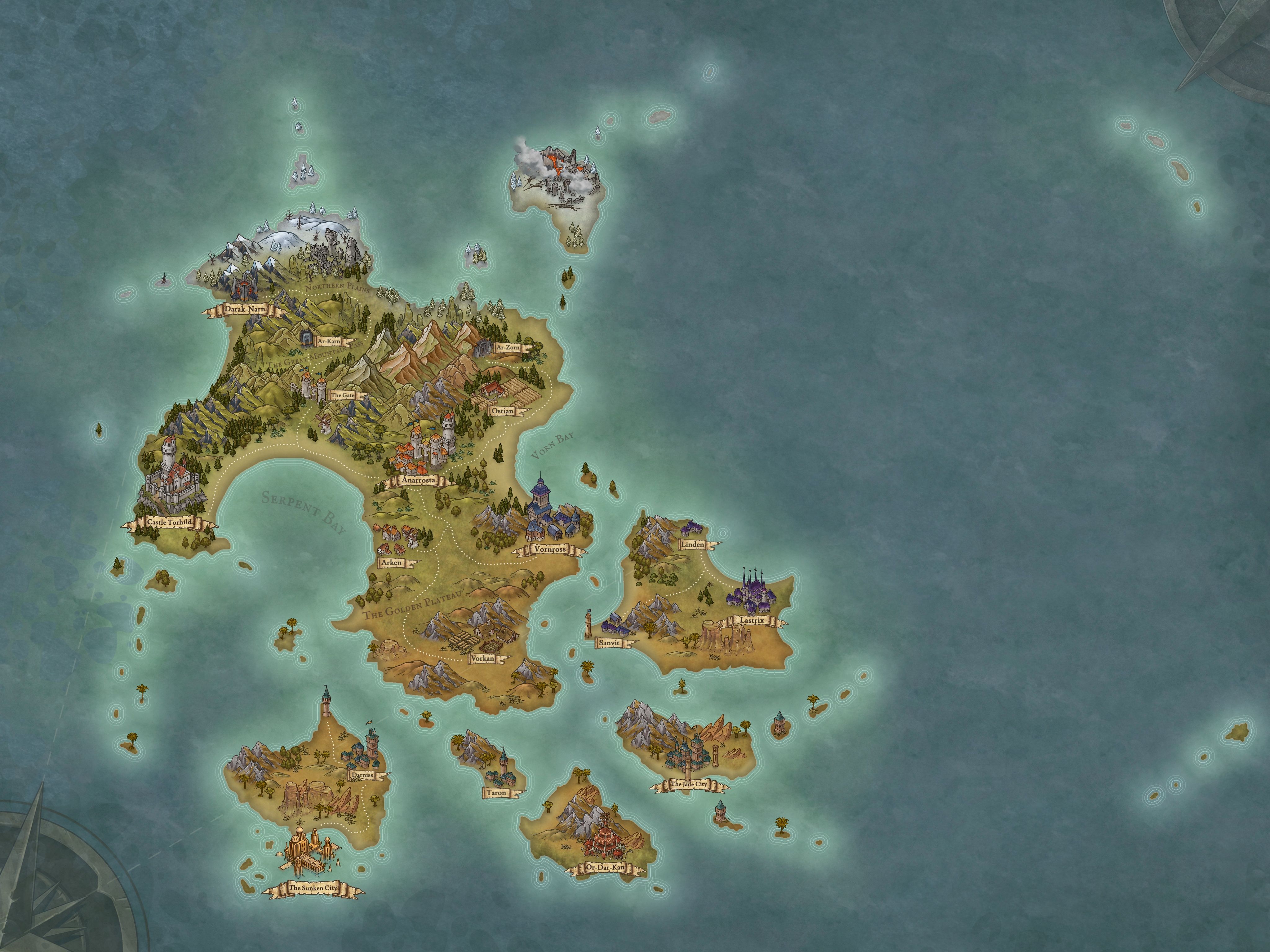
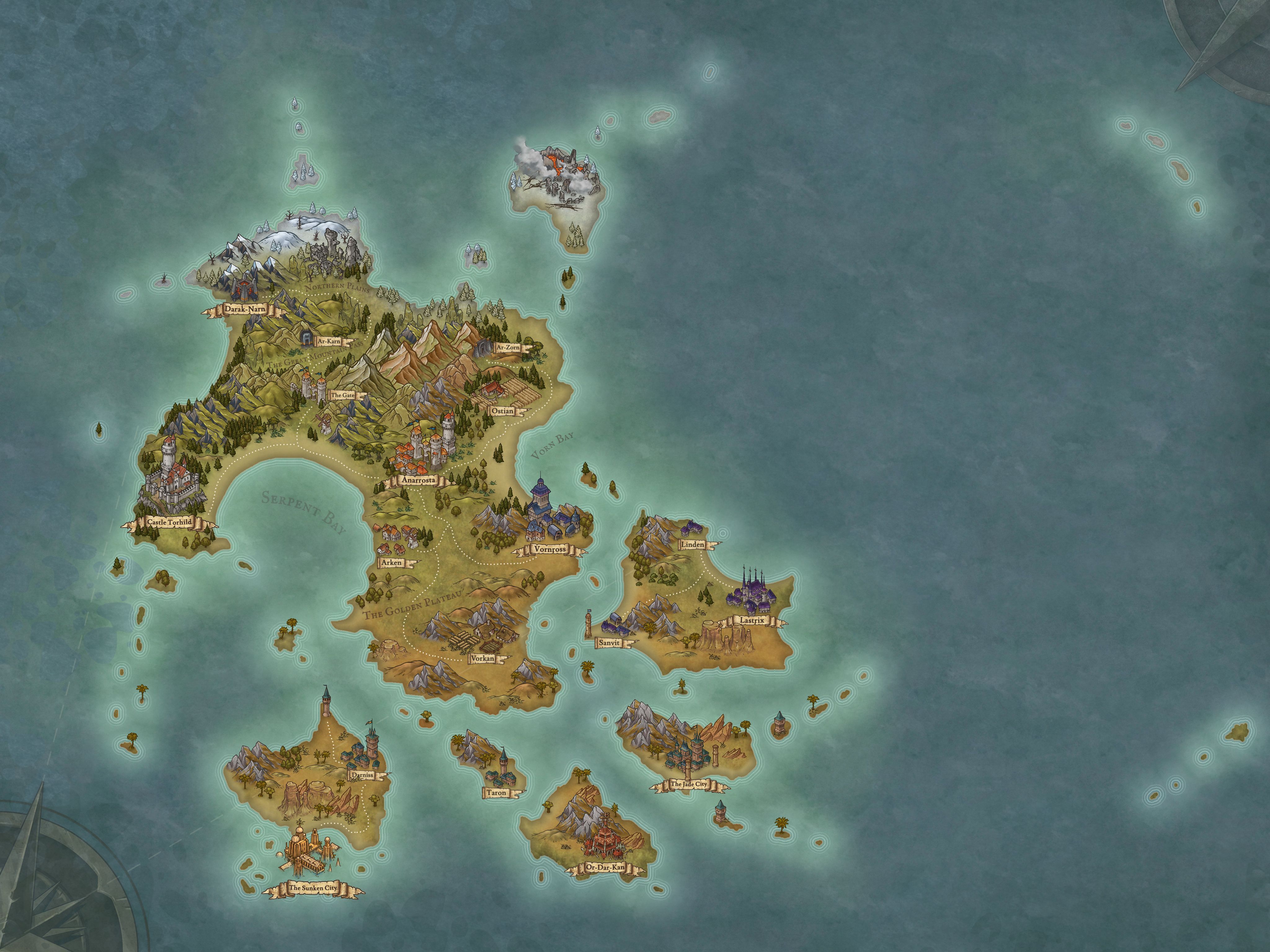
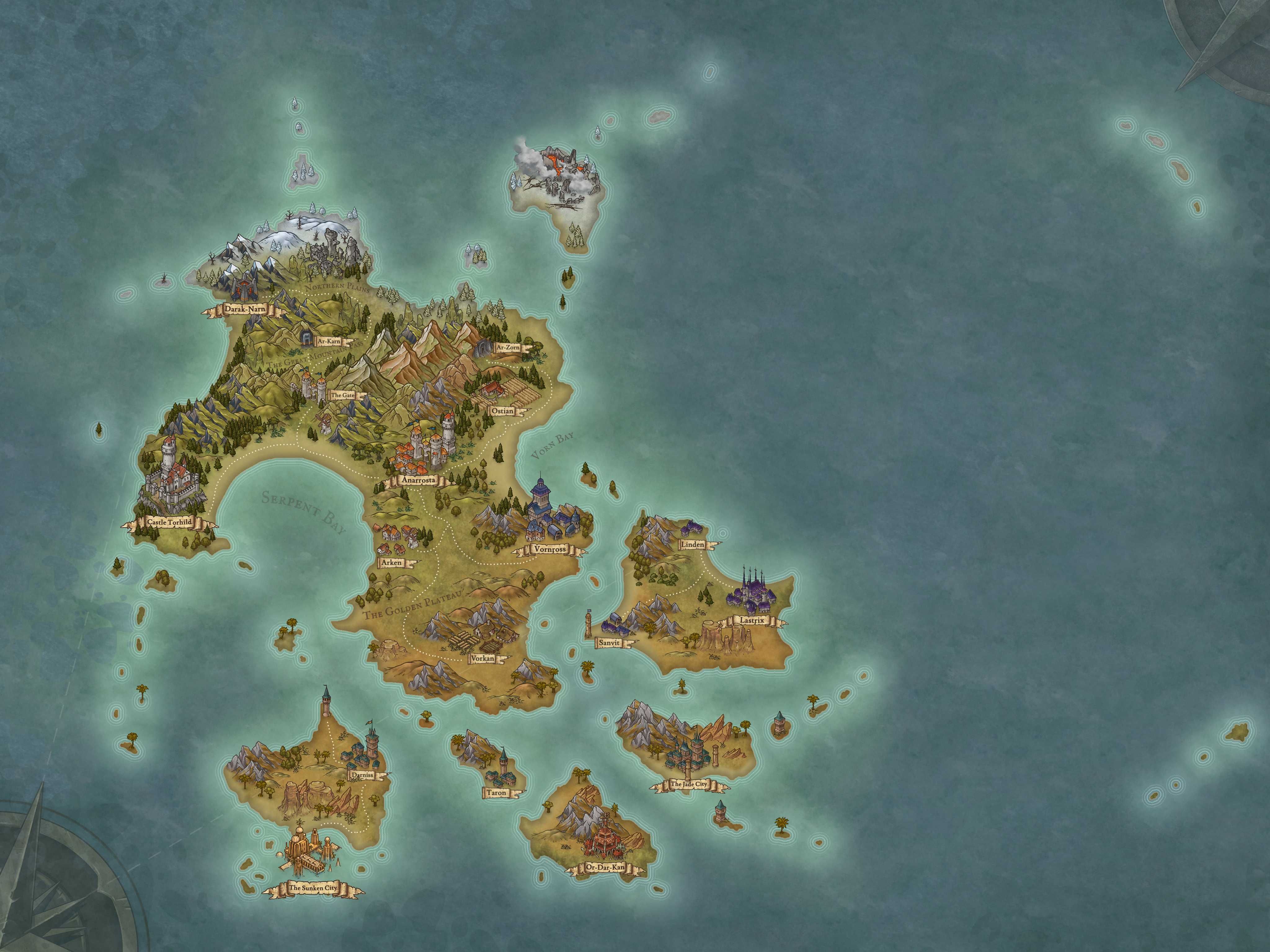
JPEG uses lossy compression to reduce file size. The Quality setting controls how much image information is preserved during compression. Higher values retain more detail but produce larger files.
For most maps, a quality value between 80 and 90 offers an excellent balance between visual quality and file size.
Compression Examples
Compression 100 - (10.9 MB)
Compression 100 - (10.9 MB)
Compression 97 - (3.7 MB) (Default)
Compression 97 - (3.7 MB) (Default)
Compression 80 - (1.4 MB)
Compression 80 - (1.4 MB)
Compression 50 - (646 KB)
Compression 50 - (646 KB)
Compression 25 - (377 KB)
Compression 25 - (377 KB)
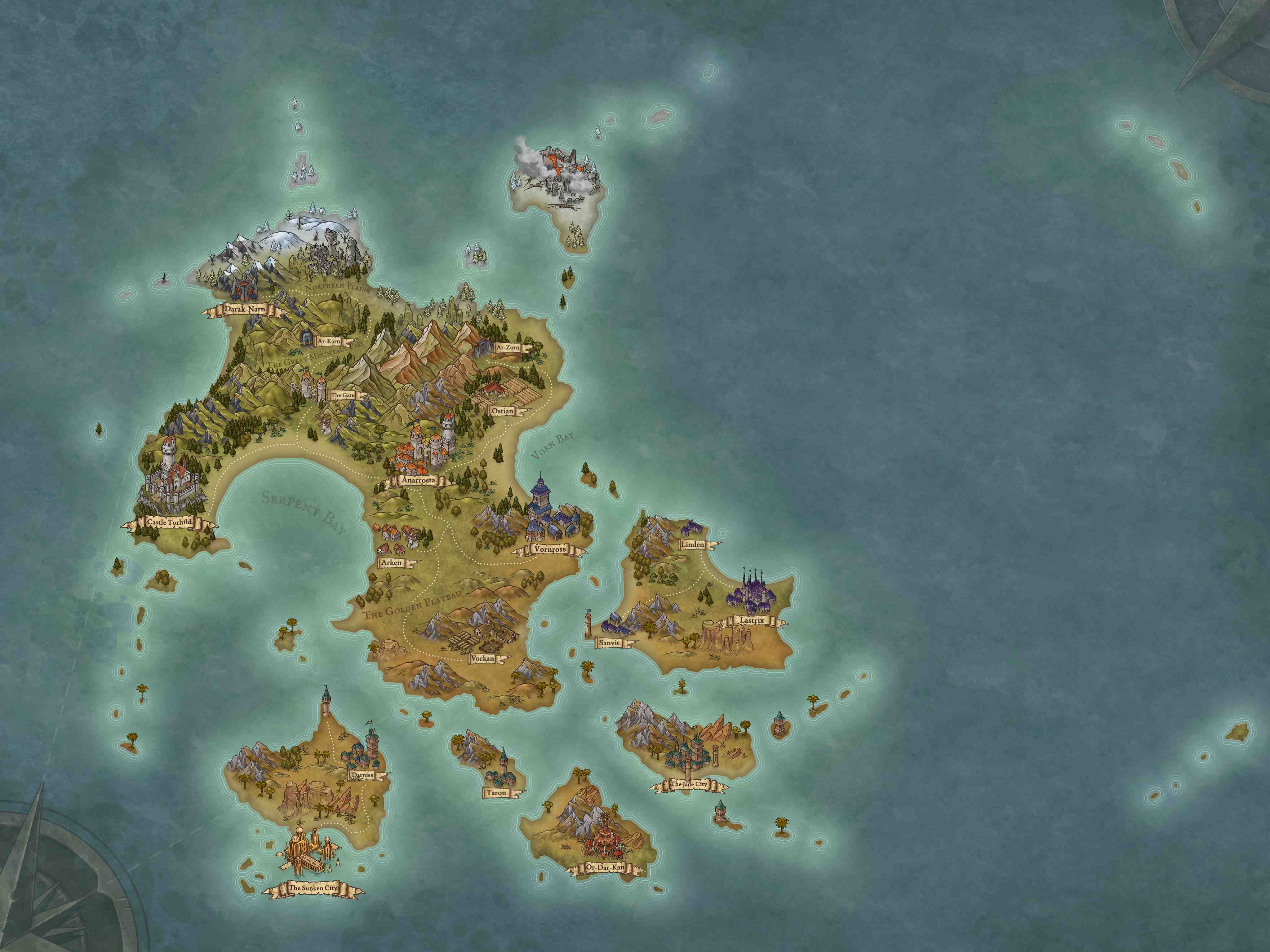
PNG
PNG uses lossless compression, preserving every pixel of the exported image. Unlike JPEG and WebP, PNG does not discard image information and therefore does not offer a quality setting.
WebP
WebP also uses lossy compression but generally achieves similar visual quality with smaller file sizes than JPEG. Like JPEG, higher quality values preserve more detail at the cost of larger files.
A quality setting between 80 and 90 is recommended for most exports.
Tips
The selected export resolution is independent of the current Editing Resolution. See Understanding Resolution for more information.
Lower the Editing Resolution if the editor becomes slow while continuing to export at a higher resolution.
Export as PNG when you want the highest image quality or need transparency.
Use WebP to reduce file size while maintaining excellent image quality.
Use JPEG for quick sharing when file size is more important than perfect quality.
For Virtual Tabletops, use VTT export mode to generate maps at the correct grid resolution.
See Also
Layers Panel: Create and manage Object Layers, control drawing order, and organize map content.
Grid Layers: Display configurable grids.
Filter Layers: Apply visual effects to the map.
Was this helpful?
Still need help? Ask the team