Stamp Assets
Written By Philipp Brockerhoff
Last updated About 1 hour ago
A Stamp Asset is an image that can be placed as an Object in a scene using the Stamp Tool. Once placed, the Stamp can be moved, scaled, rotated, and adjusted without changing the original Asset.
Stamp Assets can define default placement and appearance settings that are applied when the Asset is used in the editor.
Stamp Properties
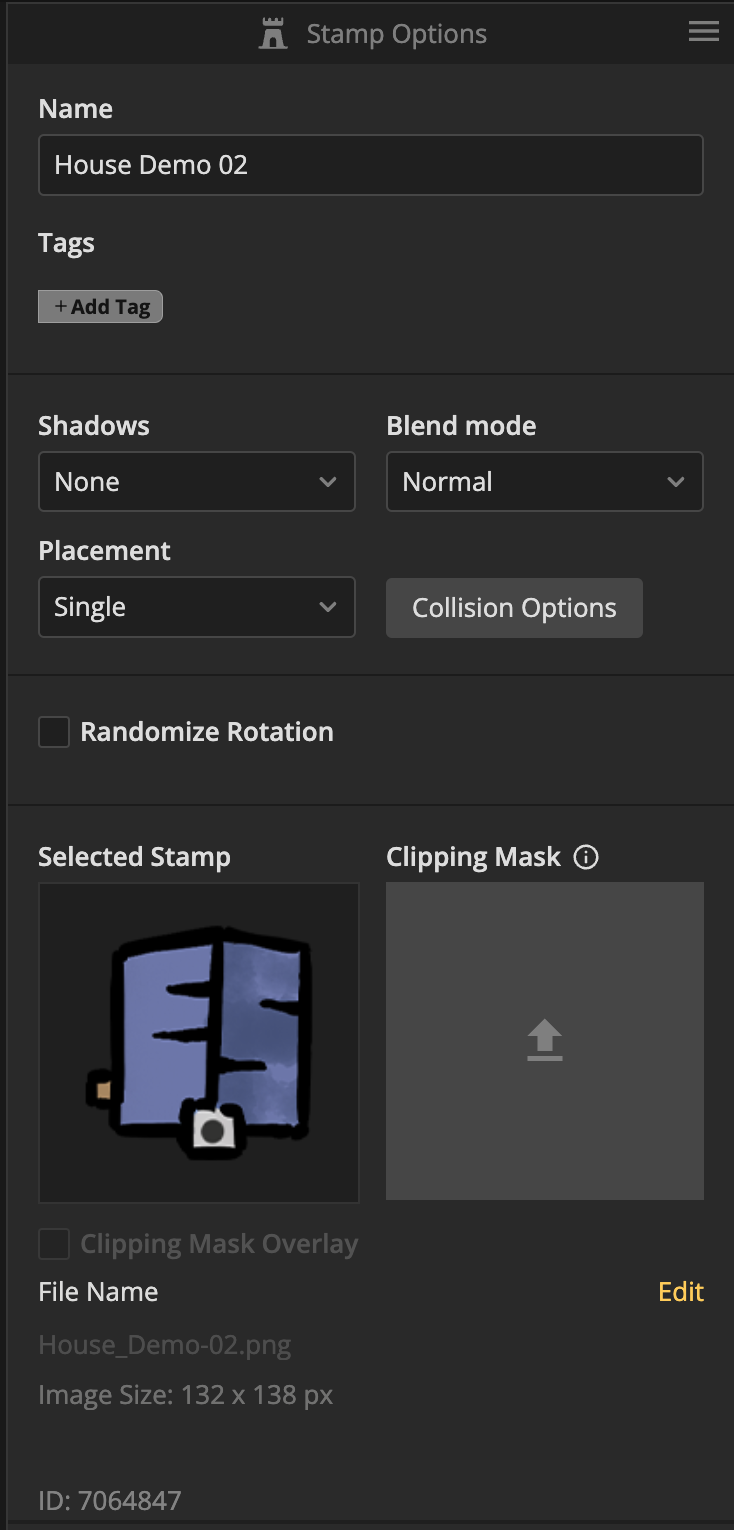
Select a Stamp Asset to view and edit its properties in the Details Panel. Stamp Assets provide the following properties:
Stamp properties can also be copied and pasted between Assets, or saved as reusable Asset Property Presets and applied to other Assets. See Asset Property Presets for more information.
Name: Identifies the Stamp in the Art Manager and Catalog. Catalog searches can match the full name or part of it.
Tags: Categorize the Stamp and improve Catalog search results.
Shadow: Defines the default shadow appearance. Supports Object Shadow or Layer Shadow, with configurable color, opacity, blur, and offset. (See Shadow Options)
Blend Mode: Controls how the Stamp blends with the content beneath it. (See Blend Modes)
Placement: Defines whether the Stamp is placed as a Single Stamp or continuously using Multiple placement.
Randomize Rotation: Randomizes the rotation of each placed Stamp to create more natural variation.
Collision: Defines the collision shape used for drag placement and Area placement.
Anchor Point: Defines the Stamp’s reference position for placement, rotation, grid snapping, and Perspective Object Ordering. The Anchor Point is centered by default and should typically only be adjusted for isometric or perspective Assets.
Clip Mask: Optionally masks the Brush Layer behind the Stamp to create terrain blending and similar effects. (See Clip Masks)
Tips
For Perspective ordering, place the Anchor Point where the object would naturally contact the ground.
Use Randomize Rotation for repeated natural elements such as rocks, plants, or debris.
Keep collision shapes simple unless more precise spacing is necessary.
Use Multiple placement for Assets intended to be scattered or repeated.
See Also
Assets: Understand the shared properties and organization of Assets.
Uploading Assets: Upload image files and create Stamp Assets.
Stamp Sets: Combine related Stamps into a single Asset with multiple Child Stamps.
Clip Masks: Control where the Brush Layer behind a Stamp is rendered.
Blend Modes: Control how Stamps combine with the content beneath them.
Shadow Options: Configure and customize object and layer shadows.
Stamp Tool: Place and customize Assets on your map.
Was this helpful?
Still need help? Ask the team