Stroke Assets
Written By Philipp Brockerhoff
Last updated About 1 hour ago
A Stroke Asset defines how lines and shape outlines are rendered with the Line & Shape Tool. Stroke Assets can use either a configurable colored line or an image repeated along the path. Image-based Stroke Assets can also use a separate Cap Stamp at the beginning and end of the stroke.
Stroke Assets support two rendering modes:
Color: Renders a configurable line using a color, stroke style, cap style, and width.
Stroke: Renders the line by repeating a Stamp image along the path and can optionally place a Cap Stamp at the beginning and end of the stroke.
Preparing Stroke Images
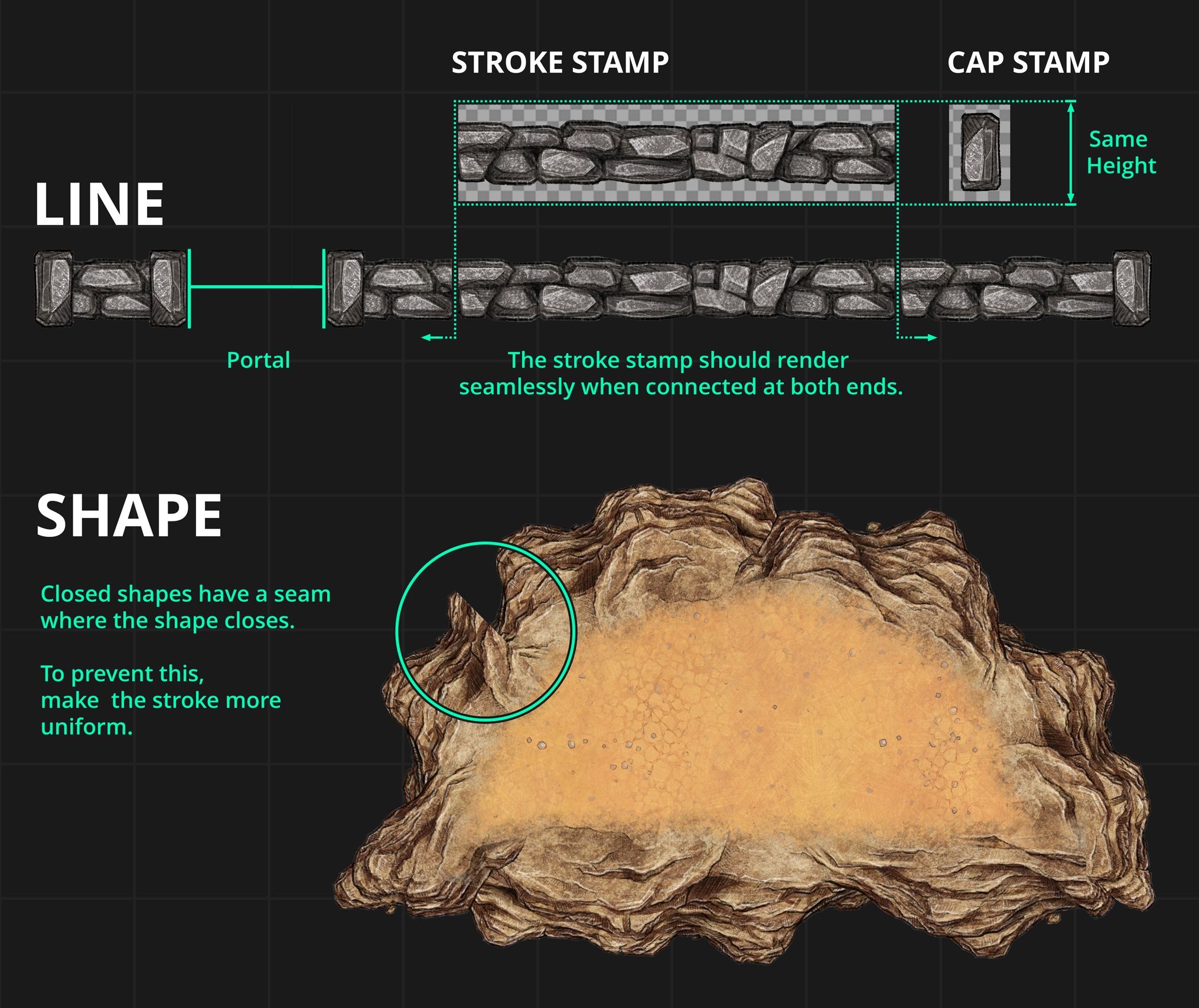
Image-based Stroke Assets use a Stroke Stamp that repeats along the path and can optionally use a Cap Stamp at the ends.
For the best results:
Design the Stroke Stamp to repeat seamlessly along its left and right edges.
Align both images horizontally.
Use the same image height for the Stroke and Cap Stamp, including transparent pixels.
Make the Cap Stamp tall enough cover the height of the Stroke Stamp at any point.
Avoid regularly spaced details that make the repeating pattern obvious when the stroke is extended.
Stroke Asset Properties
Select a Stroke Asset to view and edit its properties in the Details Panel. Stroke Assets provide the following properties:
Name: Identifies the Stroke Asset in the Art Manager and Catalog.
Tags: Categorize the Stroke Asset and improve Catalog search results.
Blend Mode: Controls how the Stroke blends with the content beneath it.
Stroke Shadow: Defines the default shadow applied to the Stroke.
Stroke Mode: Selects whether the Stroke uses a configurable Color Stroke or an Image-Based Stroke.
Color Stroke
When Stroke Mode is set to Color, the following properties are available:
Stroke Color: Defines the default color of the Stroke.
Stroke Style: Sets the Stroke to Solid, Dashed, or Dotted.
Cap Style: Sets the line ends to Round or Square.
Stroke Width: Defines the default thickness of the Stroke.
Asset Stroke
When Stroke Mode is set to Stamp, the following properties are available:
Stroke Stamp: Selects the Stamp Asset repeated along the stroke path.
Hide in Catalog: Controls whether the linked Stamp also appears as a standalone Asset in the Stamp Tool Catalog.
Randomize Starting Point: Starts each stroke at a different position within the repeating image to reduce visible repetition.
Cap Stamp: Optionally selects a Stamp Asset placed at the beginning and end of the stroke.
Hide in Catalog: Controls whether the linked Cap Stamp also appears as a standalone Asset in the Stamp Tool Catalog.
Expand a Stroke Asset to view and manage its linked Stroke and Cap Stamps.
Once a Stamp is used as a linked Stroke or Cap Stamp, its regular Stamp appearance properties no longer determine how the rendered stroke looks. The Stroke Asset properties control the final result instead.
Tips
Avoid strongly repeated details that make the tiling pattern obvious.
Hide linked Stamps from the Catalog when they are not useful as standalone Assets.
Enable Randomize Starting Point for natural patterns that should not repeat identically.
See Also
Assets: Understand the shared properties and organization of Assets.
Uploading Assets: Upload the Stamp images used by image-based Stroke Assets.
Stamp Assets: Configure the Stroke and Cap Stamps used by a Stroke Asset.
Line & Shape Tool: Create and customize lines and shapes.
Packs: Organize related Stroke Assets into collections.
Was this helpful?
Still need help? Ask the team