Blend Modes
Written By Philipp Brockerhoff
Last updated About 2 hours ago
Blend Modes control how an object or layer is combined with the layers beneath it. Instead of simply covering the content below, different blend modes can darken, lighten, tint, or otherwise combine colors to create a variety of visual effects.
Blend Modes are available for several tools and layer types throughout Inkarnate. The same blend modes behave consistently regardless of where they are used.
Blend Mode Categories
The available blend modes are grouped into several categories based on how they combine colors.
Normal
Normal: Displays the object or layer without blending. The content is rendered using its original colors.
Darken
Darken blend modes keep darker colors while reducing or removing lighter colors.
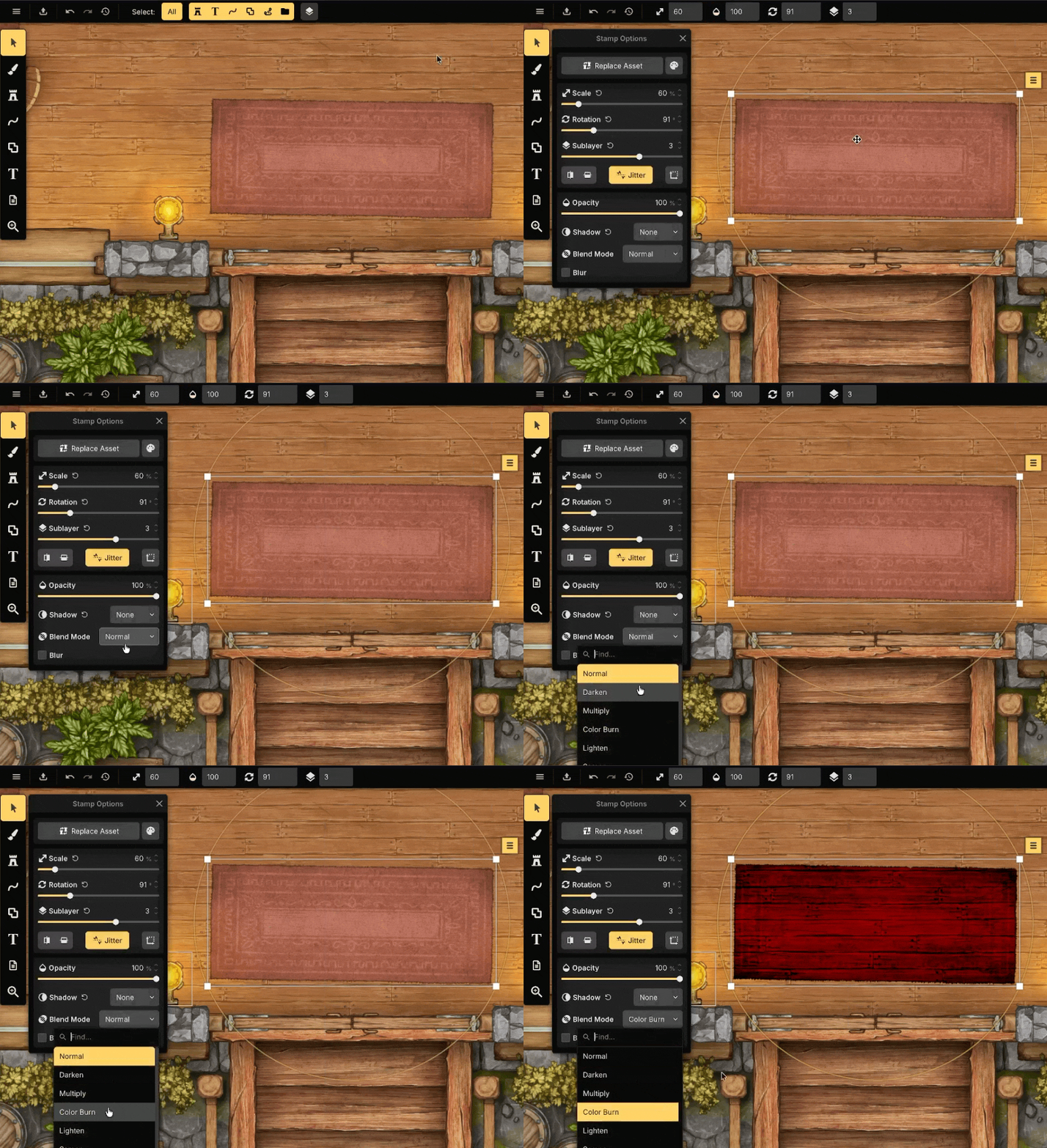
Darken: Keeps the darker color from the two layers.
Multiply: Multiplies the colors together, producing a darker result while preserving detail.
Color Burn: Darkens the image by increasing contrast, creating deeper shadows and more saturated dark areas.
Lighten
Lighten blend modes keep lighter colors while reducing or removing darker colors.
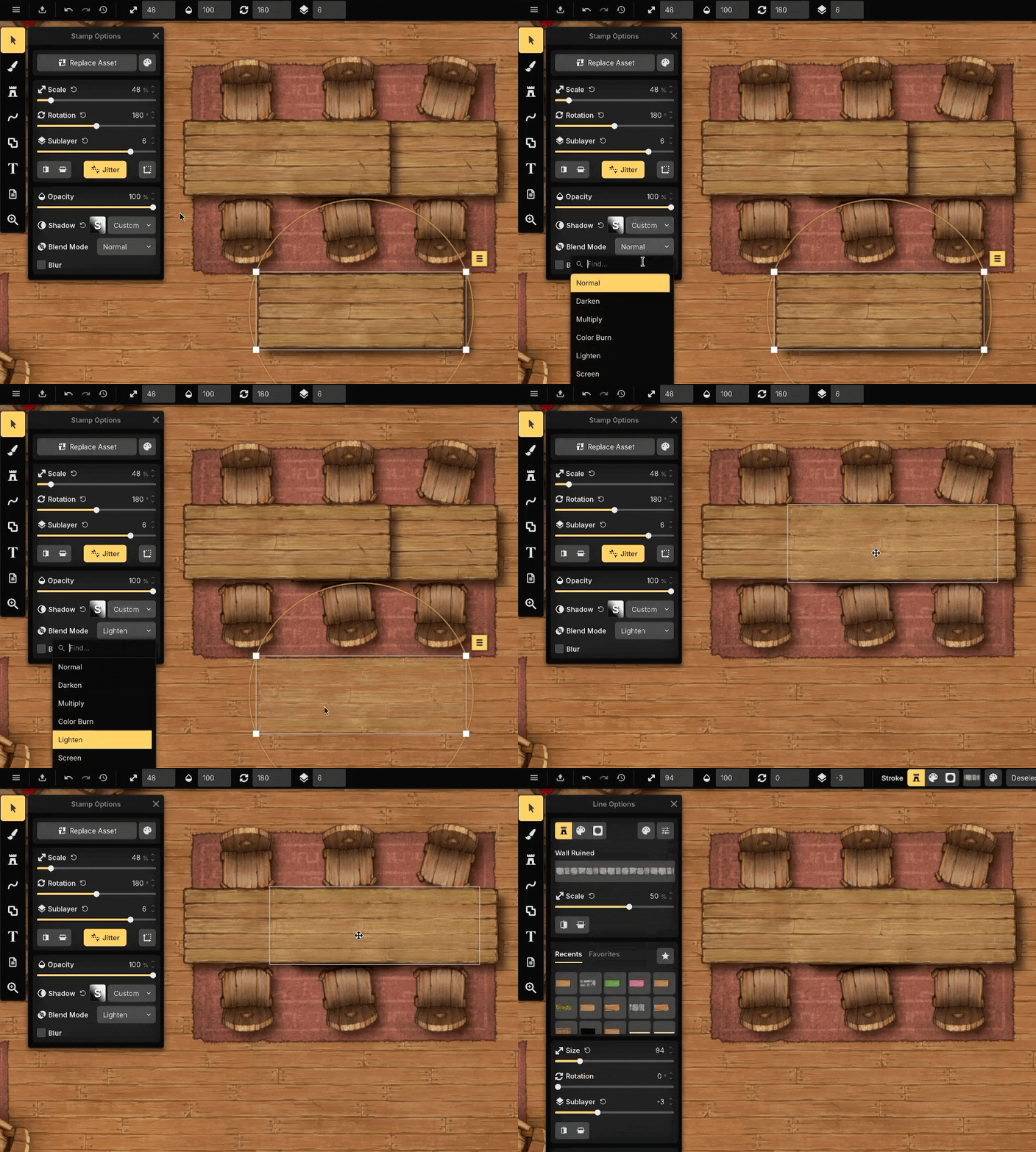
Lighten: Keeps the lighter color from the two layers.
Screen: Produces a brighter result by combining light values, making it useful for light and glow effects. Screen works like the inverse of Multiply.
Color Dodge: Brightens the image by increasing contrast, producing intense highlights.
Contrast
Contrast blend modes combine darkening and lightening effects to increase or reduce contrast.
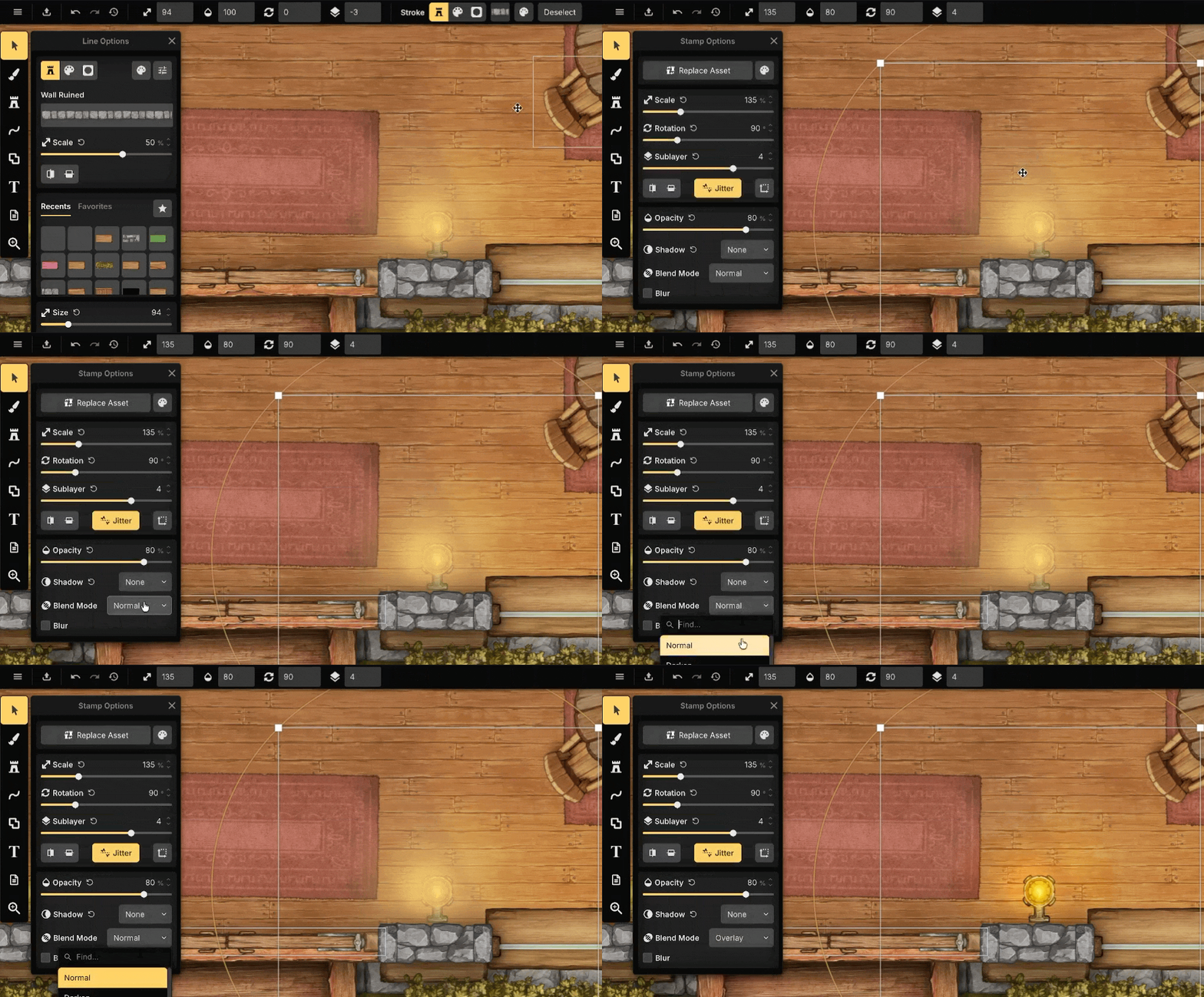
Overlay: Combines Multiply and Screen to increase contrast while preserving detail.
Soft Light: Applies a subtle contrast adjustment with smooth transitions.
Hard Light: Applies a stronger contrast effect with more pronounced highlights and shadows.
Comparison
Comparison blend modes compare the colors of the two layers.
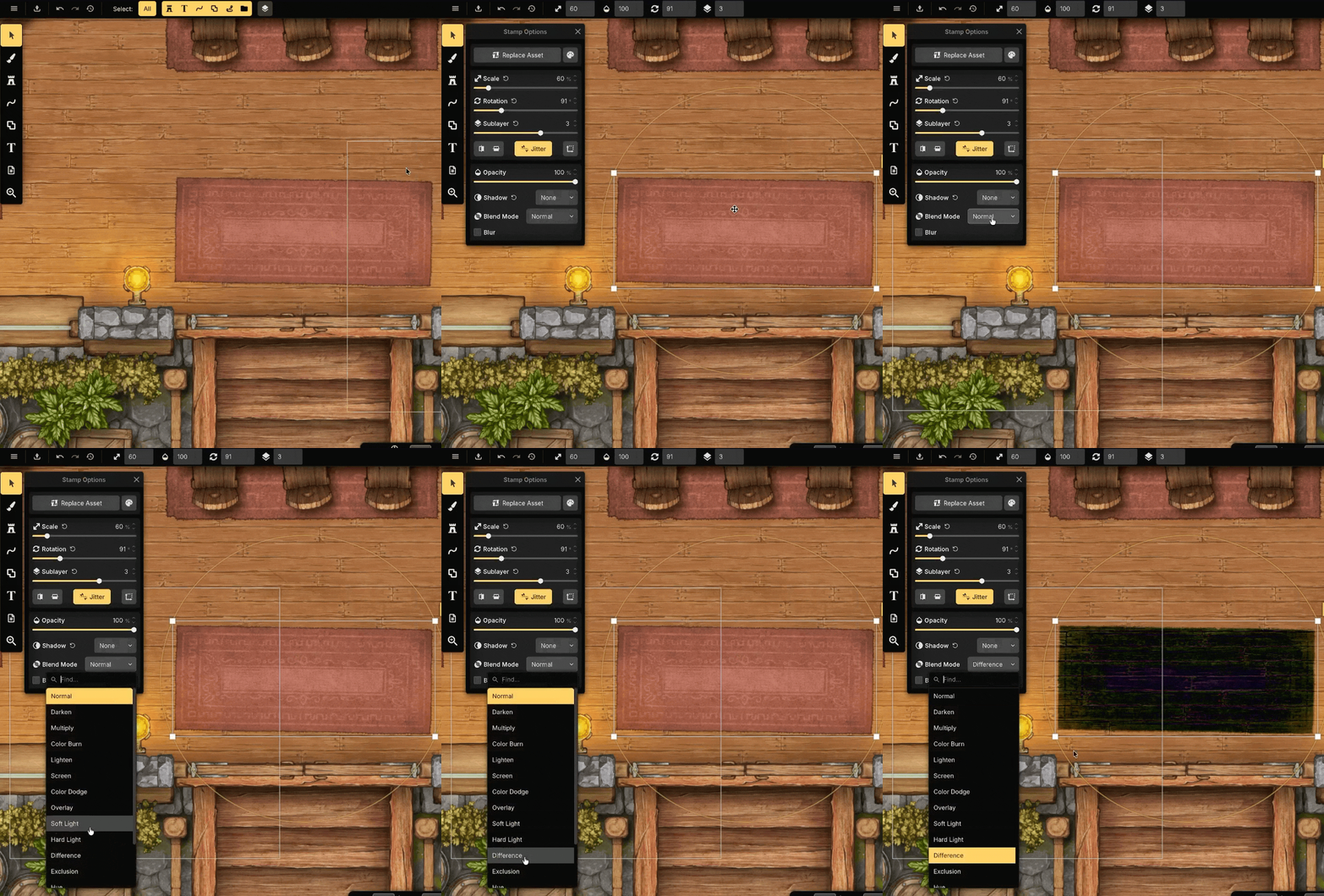
Difference: Displays the difference between the colors, often producing an inverted appearance where colors differ.
Exclusion: Similar to Difference, but produces a softer, lower-contrast result.
Component
Component blend modes combine individual color properties from different layers.
Hue: Uses the hue of the current layer while preserving the saturation and brightness of the layers below.
Saturation: Uses the saturation of the current layer while preserving the hue and brightness below.
Color: Uses the hue and saturation of the current layer while preserving the brightness below.
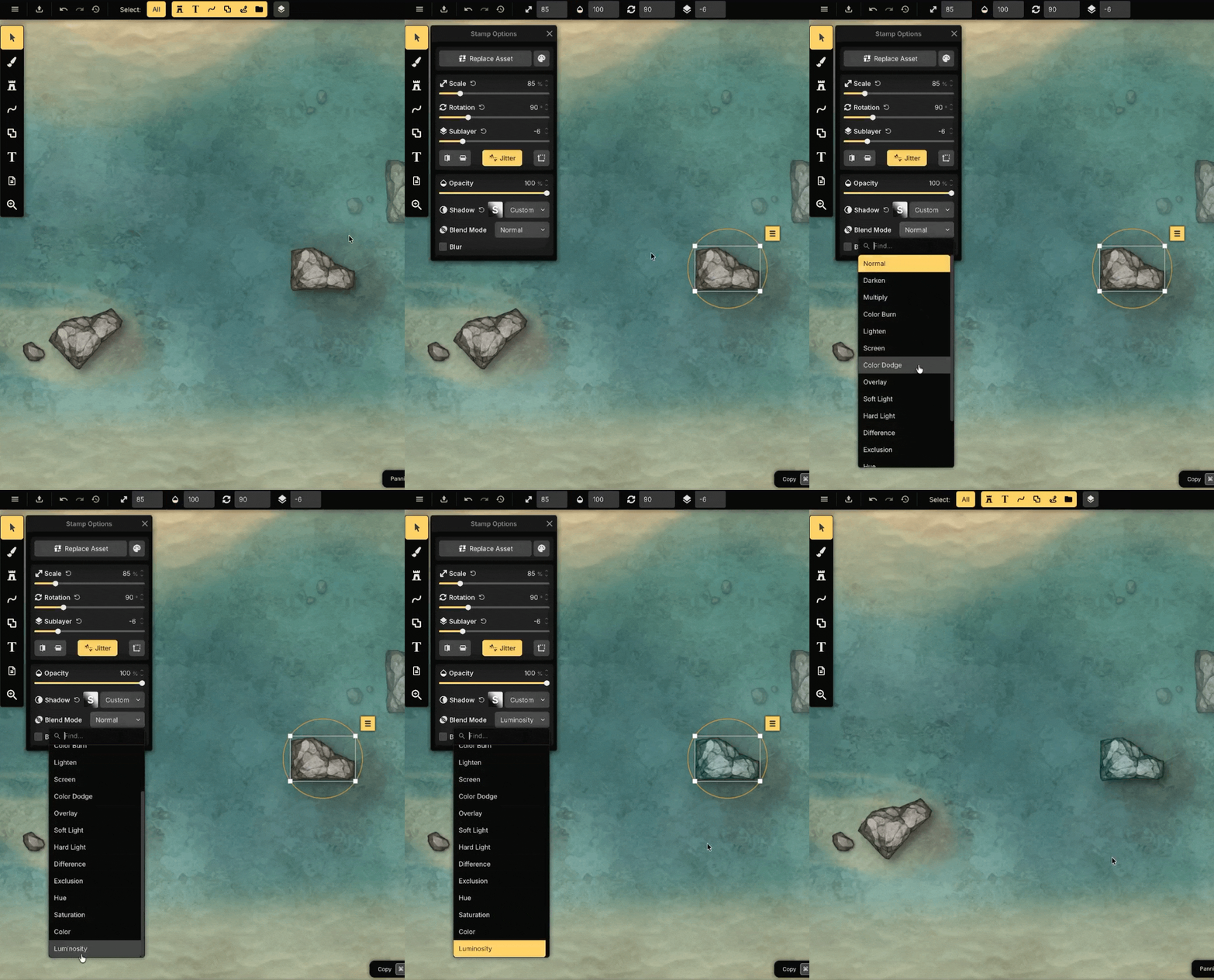
Luminosity: Uses the brightness of the current layer while preserving the hue and saturation below.
Tips
Darken blend modes work well for adding shadows and darkening terrain without completely covering the details beneath.
Lighten blend modes can be used to remove dark backgrounds or blend objects such as walls, roads, or tables more naturally into the map.
Contrast blend modes are useful for adding highlights, lighting effects, and increasing visual depth.
Component blend modes are ideal for changing colors without replacing textures or shading. For example, place a colored shape above an object and use Color to recolor it while preserving its details.
Luminosity can create effects such as underwater lighting, faded objects, or terrain blending by replacing only the brightness while preserving the underlying colors.
See Also
Stamp Tool: Place and customize assets on your map.
Line & Shape Tools: Create node based objects with clip strokes and fills.
Text Tool: Add and edit titles, labels, annotations, and other text on your map.
Object Layers: Organize line, shape, stamp, and text objects while controlling shared layer settings and rendering order.
Brush Layers: Store the terrain textures used by Clip Masks.
Filter Layers: Apply visual effects to the map.
Was this helpful?
Still need help? Ask the team