Shadow Options
Written By Philipp Brockerhoff
Last updated About 2 hours ago
Shadow Options control how shadows are rendered in Inkarnate. Both Layer Shadows and Object Shadows use the same shadow settings, but they are configured in different locations. Layer Shadows are configured in the Object Layer settings and apply to every object on the layer, while Object Shadows are configured individually for each object.
Shadow Options are available in the Stamp Tool, Line & Shape Tools, and Text Tool.
Shadow Types
Inkarnate supports two different shadow types:
Layer Shadow
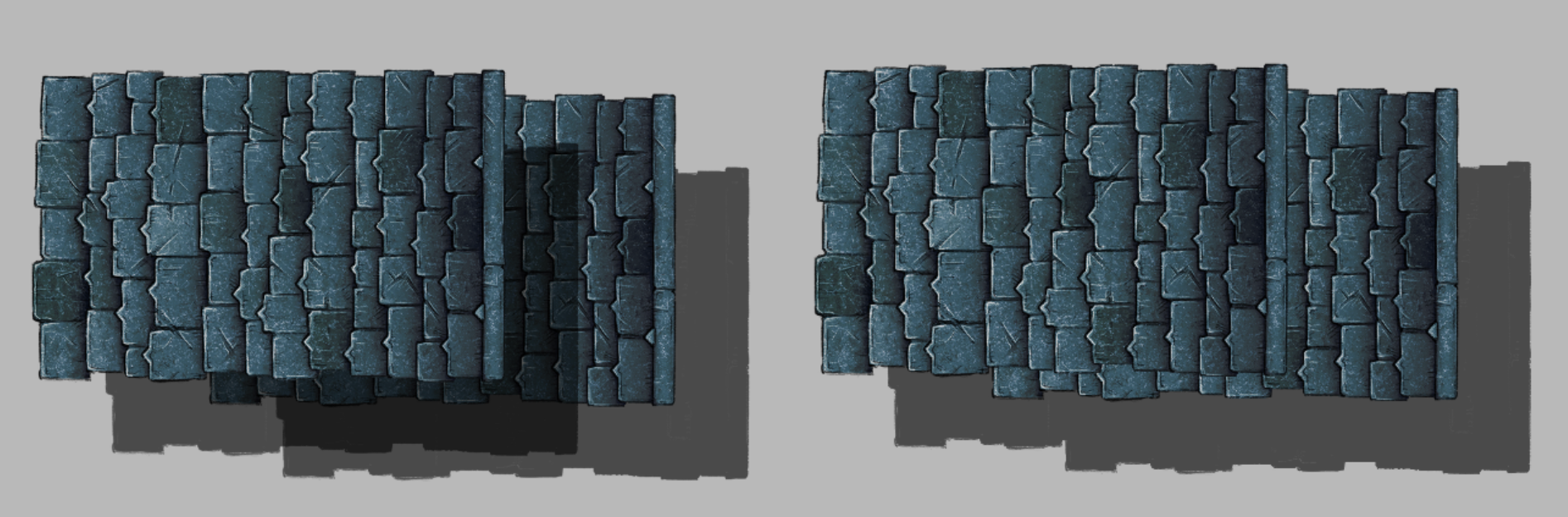
Layer Shadow uses the shared shadow settings defined by the current Object Layer. Every object on the layer uses the same shadow settings.
Layer shadows are rendered beneath all objects on the layer. When multiple shadows overlap, they are merged together without becoming darker.
Object Shadow
Object Shadow uses shadow settings defined for an individual object. Each object can have its own shadow configuration.
Object shadows are rendered directly beneath the object, allowing them to cast shadows onto objects below. When multiple object shadows overlap, they combine to create darker areas.
Shadow Settings
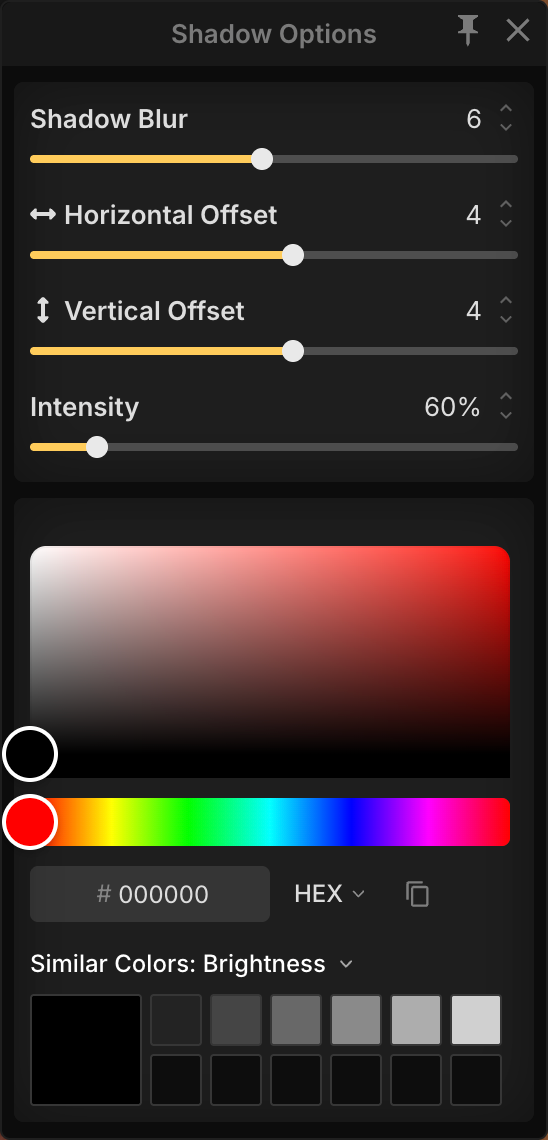
The following settings are available in the Shadow Options modal:
Shadow Blur: Controls how soft or sharp the shadow appears.
Horizontal Offset: Moves the shadow left or right on the canvas.
Vertical Offset: Moves the shadow up or down on the canvas.
Intensity: Controls the strength of the shadow. Values up to 100% behave like opacity, while values above 100% increase the shadow intensity.
Color: Choose the shadow color using the Color Picker.
Tips
Use Layer Shadows when you want all objects on a layer to share a consistent shadow style that don’t overlap
Use Object Shadows when individual objects require different shadow settings or need to cast shadows onto other objects.
Increase the horizontal and vertical offsets to create the illusion that an object is floating above the map. Larger offsets make the shadow appear farther away, increasing the perceived height of the object.
See Also
Object Layers: Organize line, shape, stamp, and text objects while controlling shared layer settings and rendering order.
Color Picker: Select colors for text, outlines, and shadows.
Stamp Tool: Place and customize assets on your map.
Line & Shape Tools: Create node based objects with clip strokes and fills.
Text Tool: Add and edit titles, labels, annotations, and other text on your map.
Was this helpful?
Still need help? Ask the team