Brush Tool
Written By Philipp Brockerhoff
Last updated 16 minutes ago
The Brush Tool is used to paint textures and solid colors onto Brush Layers, or erase existing paint. Use it to create terrain surfaces, floors, water and other textured surfaces.
Select the Brush Tool by clicking the Brush icon in the toolbar or by pressing B on your keyboard.
Brush Modes
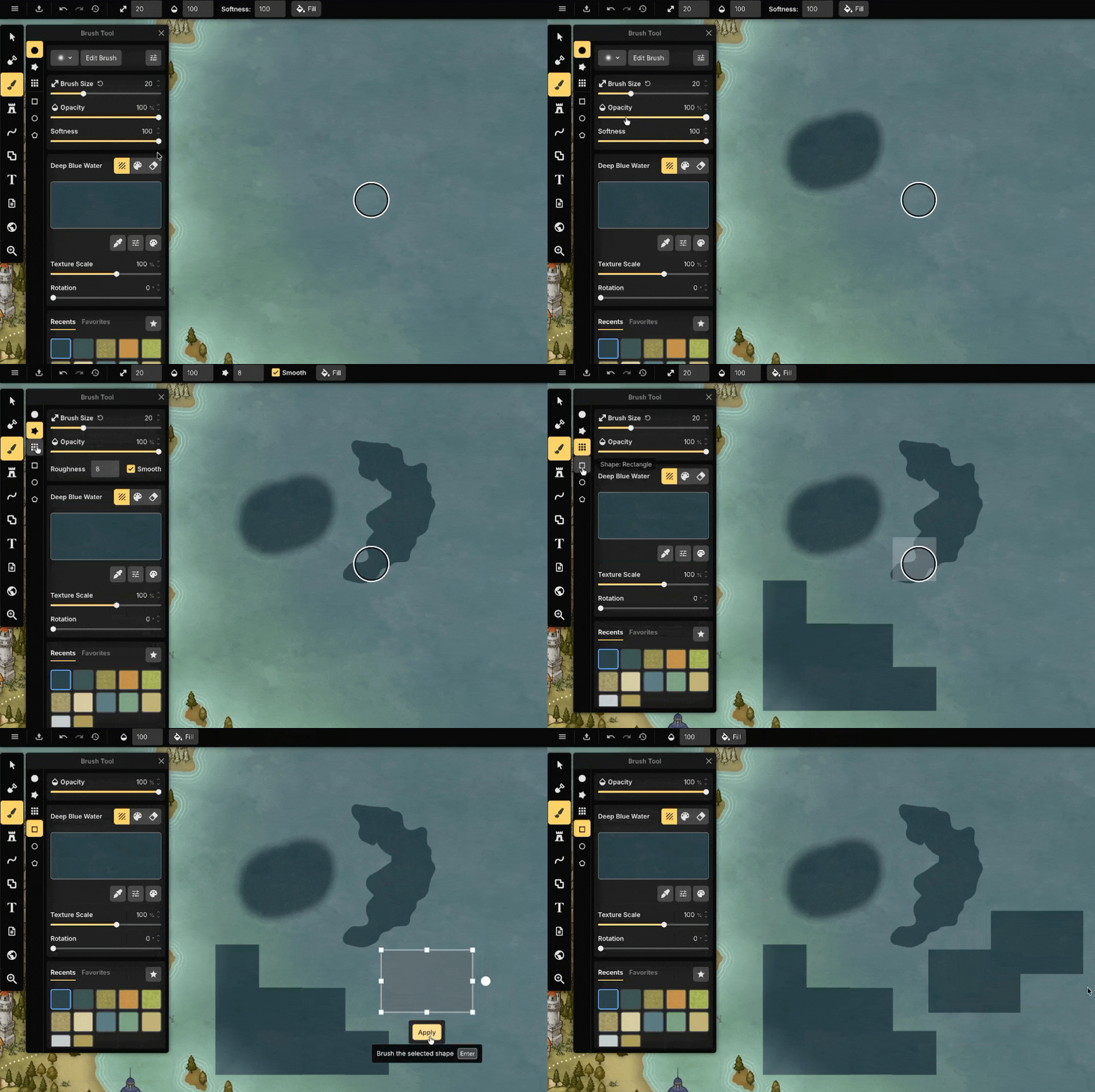
Brush Modes determine how textures and colors are applied to the map. Depending on the selected mode, different brush settings may be available. The Brush Tool offers the following brush modes:
Shape Brush: The Shape Brush paints continuously as you drag across the map. By default, it uses a circular brush, but you can also select custom brushes that support additional features such as pen pressure and advanced brush settings. For more information about custom brushes, see Brush Presets.
Edge: Edge paints with a natural, irregular outline. This is useful for creating more organic transitions between different terrain textures. The Roughness setting controls the scale of the irregularities, from small details to large, organic shapes.
Grid Blocks: Grid Blocks paint using the active grid shape, making it easy to texture individual grid cells.
Preset Shapes: Preview Modes let you define an area before applying a texture or color. The following shapes are available:
Rectangle: Paint a rectangular area.
Ellipse: Paint an elliptical area.
Polygon: Paint a regular polygon. The number of sides can be adjusted before applying the texture or color.
While creating or resizing using the Preset Shape mode, you can use modifier keys for more precise control:
Ctrl: Resize from the center instead of the initial corner.Alt: While creating a shape, constrains the selection to a 1:1 aspect ratio, creating perfect squares and circles. While resizing an existing preview, maintains the current aspect ratio.Ctrl + Alt: Combine both behaviors.
Paid Feature
The Brush Presets are available with a paid subscription.
Brush Settings
Brush Settings control how textures and colors are applied. The available settings depend on the selected Brush Mode.
Size: The Size setting controls the size of the brush. Press
W/Sto adjust the brush size. Hold Shift to adjust it in increments of 10. Alternatively you can holdShift + Mouse wheelto change the size.Opacity: Opacity controls how strongly the selected texture or color is applied. Lower values allow you to build up the effect gradually, making it easier to blend different textures. Press
E/Dto adjust the opacity. HoldShiftto adjust it in increments of 10.Softness: Softness controls how sharp or smooth the edge of the brush appears. Lower values create harder edges, while higher values create smoother transitions. This setting is only available when using the circular Shape Brush.
Application Mode
The Brush Tool can paint either textures or solid colors, or remove existing paint from the active Brush Layer. The following types are available:
Texture: Paint a selected texture from the catalog.
Color: Paint with a selected color. Clicking the color preview opens the Color Picker.
Erase: Select Erase to remove textures or colors from the active Brush Layer. Unlike an undo operation, Erase modifies the pixels on the layer itself. It does not remove individual brush strokes after they have been applied.
Paid Feature
The Color mode is available with a paid subscription.
Texture Properties
When painting with textures, additional settings are available to control how the selected texture is applied.
Placement: Texture placement controls the position and orientation of the texture. Available settings include: Scale, Rotation, Horizontal Offset, Vertical Offset.
Color Adjustments: Color adjustments modify the appearance of the selected texture. Available adjustments include: Hue, Saturation, Brightness, Contrast
Paid Feature
The Color Adjustments are available with a paid subscription.
Recently Used
The Recently Used section displays the textures and colors you have used most recently on the current map, including all applied settings. This makes it easy to switch between materials without having to configure them again.
Recently Used items are specific to each map.
Favorites
Save textures and colors as Favorites to reuse them across multiple maps.
Favorites store the selected texture or color together with all of its customized settings, such as scale, rotation, offsets, and color adjustments. Saved favorites are available in all maps and scene styles.
Paid Feature
Favorites are available with a paid subscription.
Tips
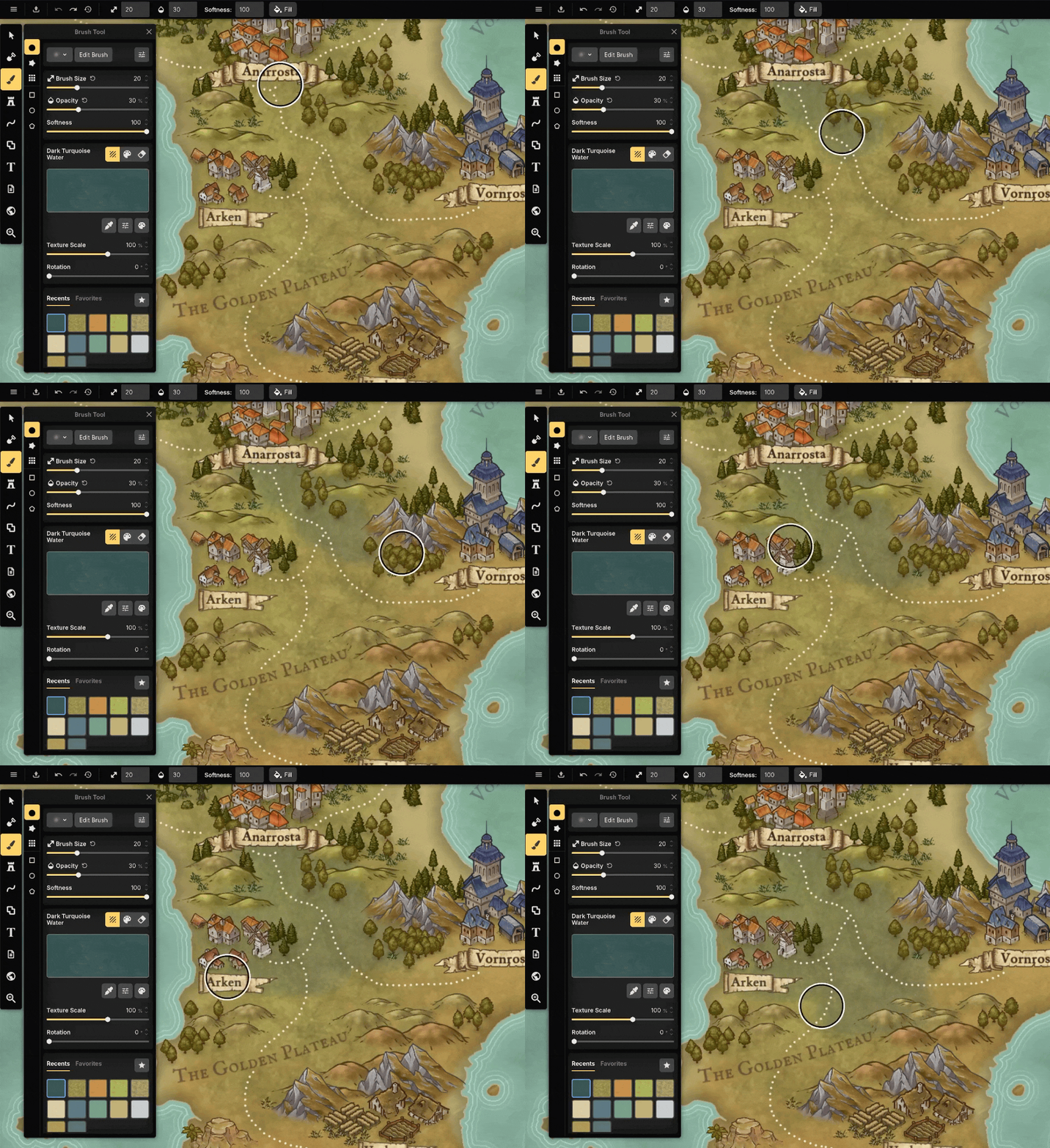
Paint with high softness and low opacity around 20-30% to create smooth transitions between different terrain textures with multiple strokes.
Use the Ellipse Preset Shape together with
Altto create perfect circles.Custom brush presets can help create more varied and organic-looking terrain.
Paint on separate Brush Layers when you want to edit different elements independently.
Add frequently used brush textures to your favorites for easy access.
See Also
Catalog: Browse and select assets of different types.
Layers Panel: Create and manage Object Layers, control drawing order, and organize map content.
Land Tool: Create and edit the shape of the land before applying textures with the Brush Tool.
Color Picker: Select colors for text, outlines, and shadows.
Was this helpful?
Still need help? Ask the team