Text Tool
Written By Philipp Brockerhoff
Last updated 7 minutes ago
The Text Tool is used to add titles, labels, notes, and other text to your maps. Use it to create map titles, region names, city labels, legends, annotations, and other descriptive text.
Select the Text Tool by clicking its icon in the left toolbar or pressing T. Click anywhere on the map to create a new text object. To edit an existing text object, select it and modify its contents using the Text field in the tool panel.
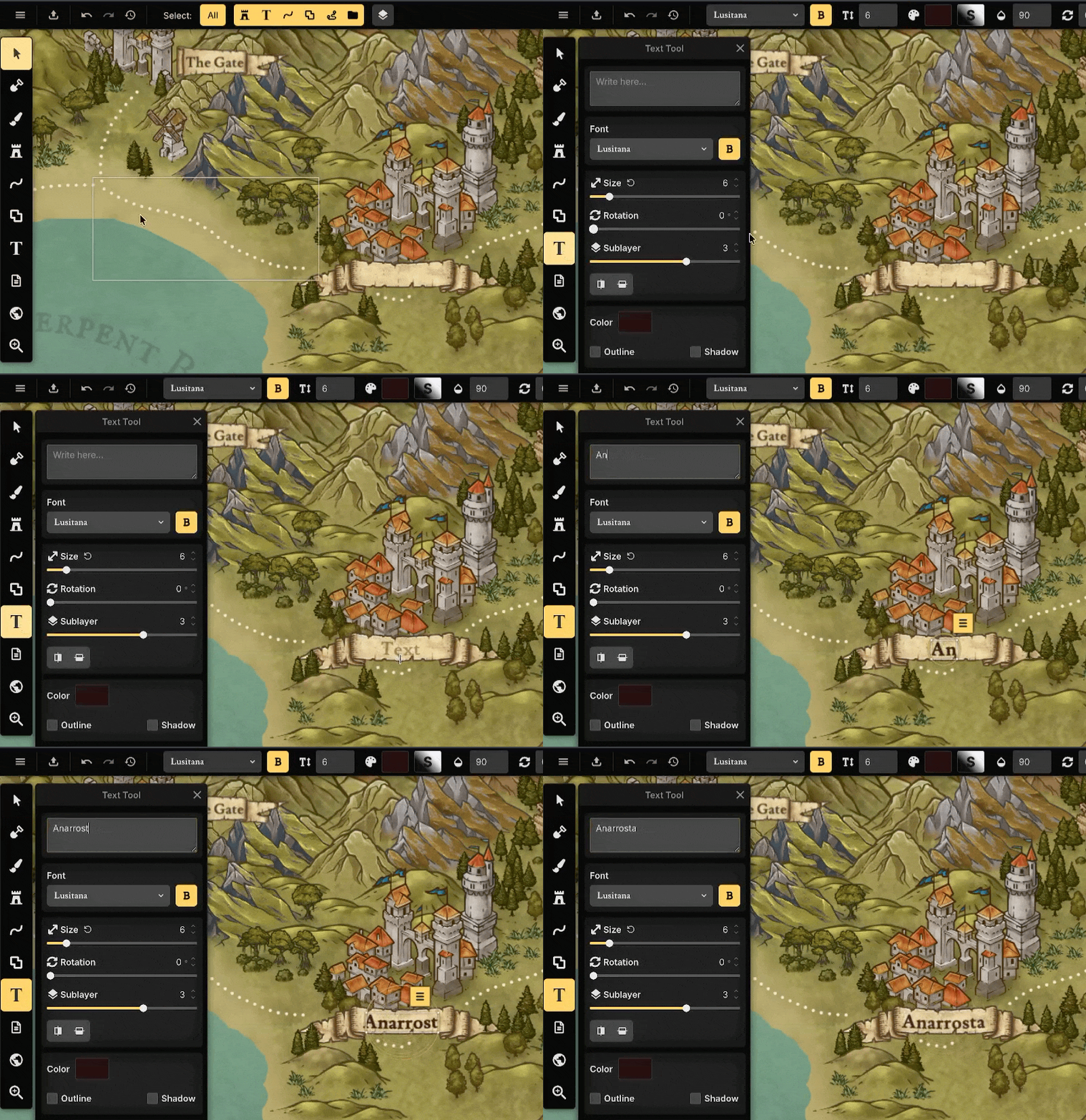
Text Properties
Text Properties control the content and typography of the selected text object. Available properties include:
Text field: Click the text field to edit the contents of the selected text object. The text editor supports multiple lines and can be expanded for editing longer passages. Changes are applied immediately.
Font: Choose one of the available fonts included with Inkarnate.
Bold: Enable or disable the bold version of the selected font.
Curve: Curve the text along an arc.
Letter Spacing: Adjust the spacing between individual characters.
Line Height: Adjust the spacing between multiple lines of text.
Alignment: Choose how multiple lines of text are aligned.
Placement Properties
Placement Properties control the position, orientation, and drawing order of the selected text object. The following properties are available:
Size: Adjust the size of the text. Press
W/Sto adjust the stamp scale. HoldShiftto adjust it in increments of 10. Alternatively you can holdShift + Mouse wheelto change the scale.Rotation: Rotate the text object to any angle. Press
</>to adjust the rotation in increments of 15°. HoldAltto adjust rotation in increments of 1. Alternative you can holdCtrl (+ Alt) + Mouse Wheelto change the rotation.Sublayer: Controls the display order within the active Object Layer.
Horizontal & Vertical Flip: Flips the text horizontally or vertically.
Appearance Properties
Appearance Properties control how the selected text is rendered without changing its content or layout. The following properties are available:
Text Color: Choose the text color using the Color Picker.
Outline: Add an outline around the text and properties for its color and thickness.
Shadow: Apply a shadow to improve readability or create additional depth. See Shadow Options for more information.
Opacity: Adjust the transparency of the text.
Blend Mode: Control how the text blends with the colors and textures beneath it. See Blend modes for more information
Blur: Apply a blur effect to soften the appearance of the text.
Paid Feature
The Blur property is available with a paid subscription.
Tips
Reuse the style of an existing text object to keep labels consistent across your map.
Use Curve to follow the shape of labels, or geographical elements such as coastlines or mountain ranges.
Add a subtle outline or shadow to improve readability on detailed backgrounds.
Lower the opacity of large region labels so they remain visible without overpowering the map.
Increase Letter Spacing for large titles and region names to create a more polished appearance
See Also
Object Panel: Select, organize, and manage line, shape, and stamp objects on the active Object Layer.
Layers Panel: Create and manage Object Layers, control drawing order, and organize map content
Color Picker: Select colors for text, outlines, and shadows.
Stamp Tool: Place and customize assets on your map.
Was this helpful?
Still need help? Ask the team