Composites
Written By Philipp Brockerhoff
Last updated 16 minutes ago
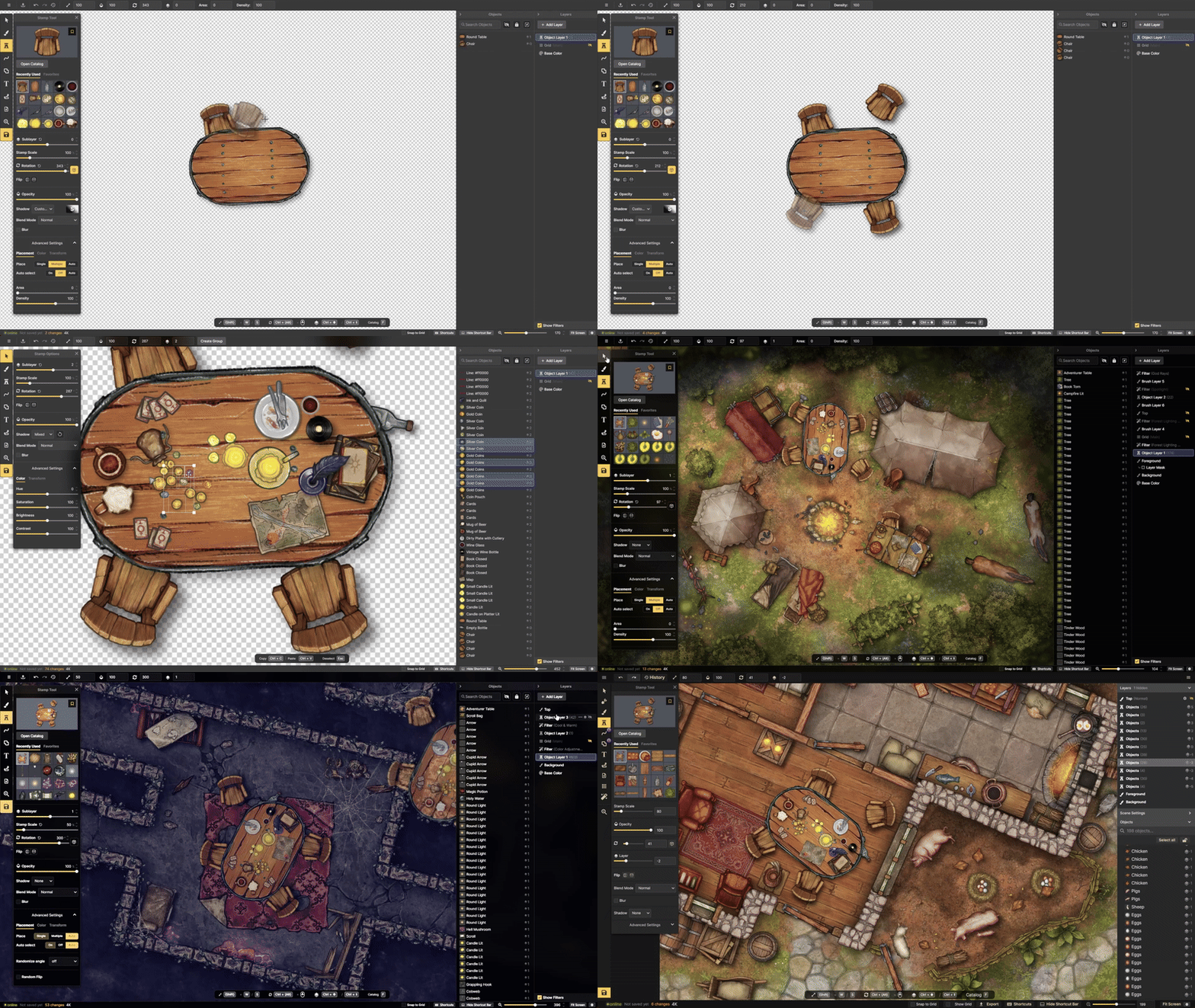
A Composite is a flattened image created from the contents of a scene. Composites allow you to convert multiple objects or brush layers into a single reusable Stamp while preserving their appearance.
Composites are created from the Export as Composite option in the Main Menu and are saved as Assets in your Catalog. Once created, they can be placed, organized, and managed like any other Stamp Asset.
Paid Feature
The Export as Composite Feature requires a Studio Tier subscription.
Creating a Composite
To create a Composite:
Open the Main Menu.
Select Export as Composite.
Export the Composite.
The scene is rendered into a single high-resolution image. Empty transparent areas are automatically cropped so the Composite only contains the visible content.
To create transparent areas in the Composite, disable any Brush Layers that should not be included. For the Base Layer set the Base Color to Transparent in the Base Layer Options.
Composite Behavior
Composites are rendered at 8K resolution and preserve the appearance of the original scene, including its size, colors, shadows, and other visual properties.
Once created:
Composites behave like regular Stamp Assets and can be placed anywhere in your maps.
Composites can be added to Stamp Sets alongside regular Stamps.
Composites are flattened images and cannot be edited directly.
The original Asset information is retained internally for compatibility and access checks.
Updating a Composite
If you choose to keep the source scene, the Composite remains linked to it.
Editing the source scene does not automatically update the Composite. Instead, you can export a new version of the Composite at any time.
Sharing & Access
Composites are treated as private Assets for access and sharing checks. Maps containing Composites follow the same access rules as maps containing other private Assets.
Tips
Use Composites to improve performance when repeatedly placing complex groups of objects.
Keep the source scene if you expect to create updated versions later.
See Also
Stamp Assets: Learn how Composites behave once created.
Stamp Sets: Combine Composites with other Stamps.
Assets: Organize and manage Composite Assets.
Export: Export maps as images instead of reusable Assets.
Was this helpful?
Still need help? Ask the team